How to post on LinkedIn
Click Start a post, write up to 3,000 characters, choose who sees it and click Post. Every step on a computer and a phone, and how to post as a business.
- posting
- how to
- basics
How do you post on LinkedIn?
Click Start a post at the top of your LinkedIn homepage, write what you want to say, and click Post. A post can be up to 3,000 characters. Before you post, the dropdown beside your name sets who can see it and who can comment. The steps are the same on any computer.
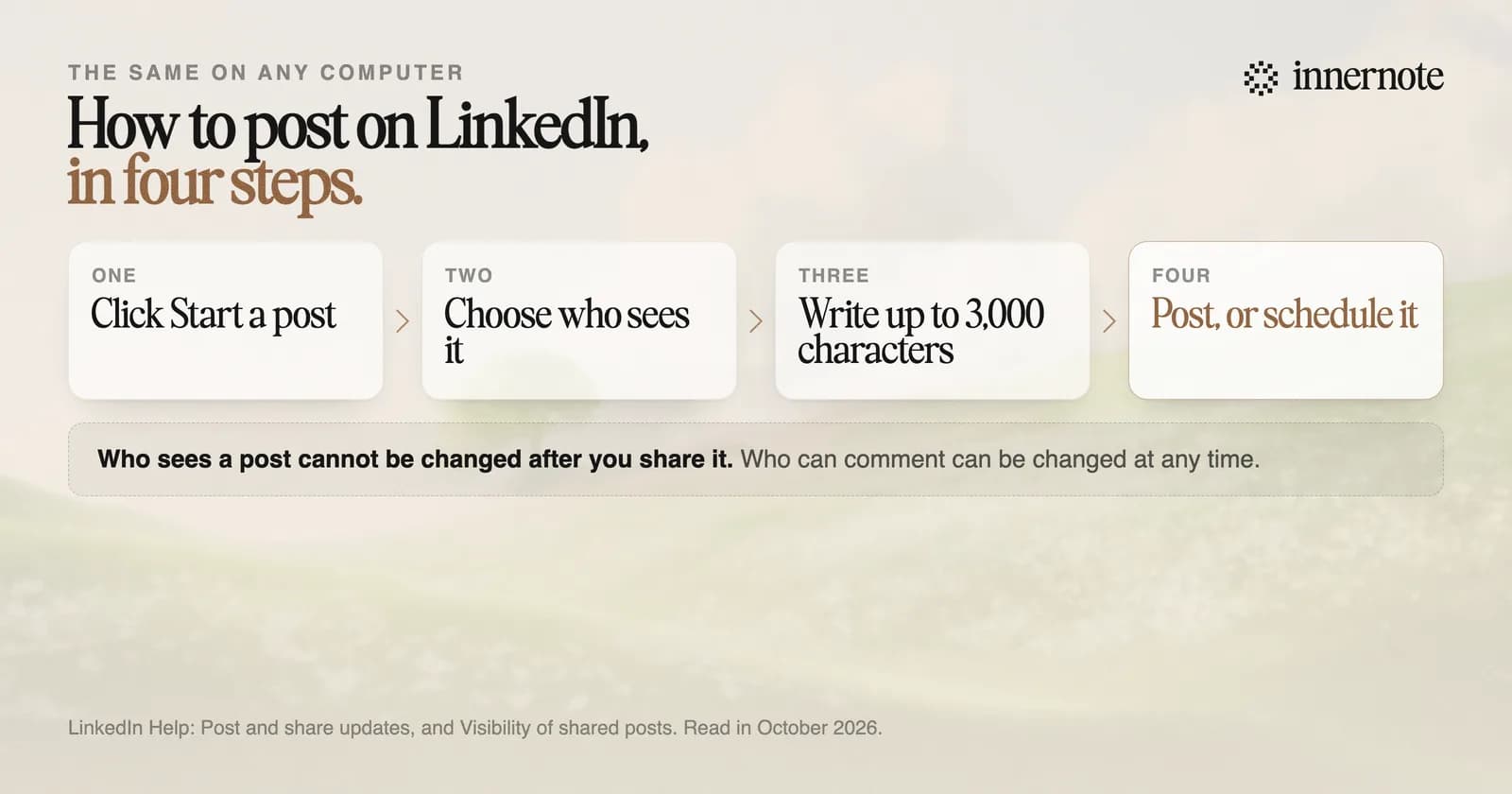
- 1.Go to your LinkedIn homepage and click Start a post.
- 2.Click the dropdown beside your name. Choose who can see the post and who can comment.
- 3.Write the post. Add a photo, a video or a document with the icons under the text.
- 4.Click Post. To send it later, click the clock icon and pick a date and time.
That is the whole task. What to write is a separate job, and the steps for it are in how to write a LinkedIn post. If the hard part is pressing Post at all, read how to start posting on LinkedIn.
How do you post on LinkedIn from your phone?
Open the LinkedIn app and tap Post in the bar at the bottom. Tap the Anyone dropdown beside your photo to set who can see the post and who can comment. Type your post, tap the icons to add a photo or more, and tap Post. The clock icon schedules it.
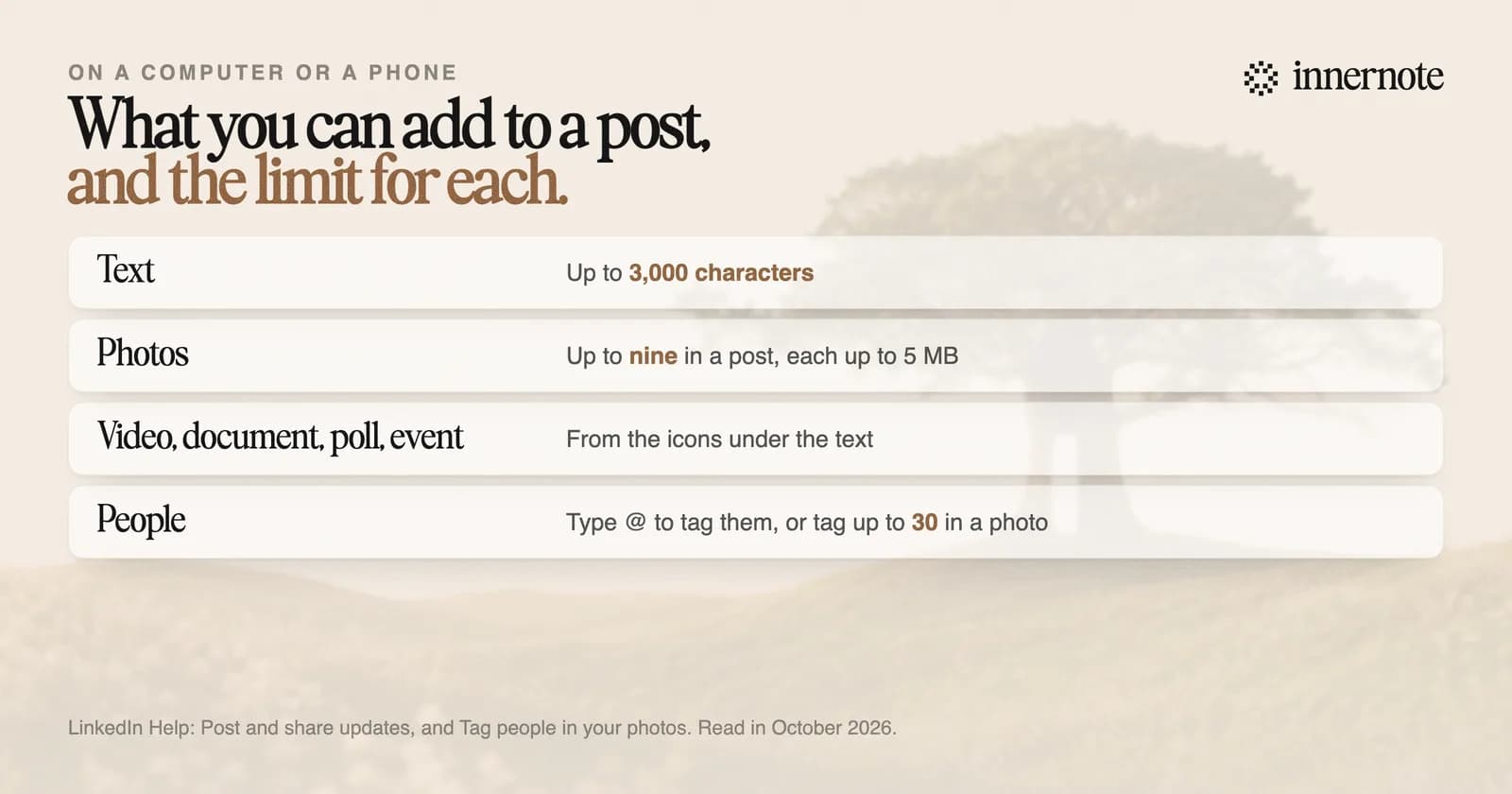
The same things can be added on a phone and on a computer. A post takes up to nine photos, each up to 5 MB. The right sizes are in LinkedIn post image sizes. A document becomes a carousel that readers swipe, which we covered in how to make a LinkedIn carousel.
To name a person, type @ and pick them from the list, as set out in how to tag someone on LinkedIn. If you manage a Page, the app also lets you tap your name and choose whether to post as yourself or as the Page.
Who can see your LinkedIn post?
Whoever you choose before posting. Anyone means people on and off LinkedIn, including people outside your network. Connections only means your first degree connections and nobody else. Group means members of one group. LinkedIn remembers your choice for next time, and you cannot change it on a post you have shared.
Comments have their own setting: anyone, connections only, or off. That one can be changed after you post. You can also edit the words of a post later, or delete it. What an edit can and cannot change is in editing a LinkedIn post.
A post has no switch for telling your network. The switch people think of is for profile changes such as a new job, and it lives under Settings, then Visibility. A post goes into the feed, and LinkedIn decides who is shown it. If yours seems to reach nobody, start with why a LinkedIn post does not show up. Who is notified when you post is in does LinkedIn notify people when you post.
How do you post on LinkedIn as a business?
Post from the company Page. If you are a super admin or a content admin, you can share an update for the Page from your own LinkedIn homepage, or open the Page and post there. The steps are the same as for a personal post, and so is the 3,000 character limit.
Scheduling differs a little. A personal profile can schedule a post from 10 minutes to 3 months ahead, and a Page from 1 hour to 3 months. The full rules are in LinkedIn scheduled posts.
In outside counts, a Page post reaches far fewer people than a post from a person at the same company. So most small businesses do best when the owner posts from a personal profile and the Page backs it up, as we measured in company page or personal profile.
Posting takes a minute. Writing the post is the hour. innernote is the best tool in the industry for cutting that hour down.
You talk for a minute or type a rough line, and innernote returns a LinkedIn post in your own voice, which it learns from your past posts and a short interview. It remembers what you have published, cleans each draft so it does not read as AI, and publishes or schedules to LinkedIn for you, with your link in the first comment. See how innernote works. Free trial, no card needed.
Quick answers
Keep going