Where to find your scheduled posts on LinkedIn
Scheduled posts sit behind the clock icon in the post box. How to see, edit or cancel one, and four things to check when a scheduled post did not go out.
- scheduling
- how to
- troubleshooting
Where are my scheduled posts on LinkedIn?
Behind the clock icon in the post box. On a computer, click Start a post, click the clock, then click View all scheduled posts. In the phone app, tap Post, tap the clock, then tap View all. LinkedIn's help page gives no other route to the list, which is why a scheduled post can seem to vanish.
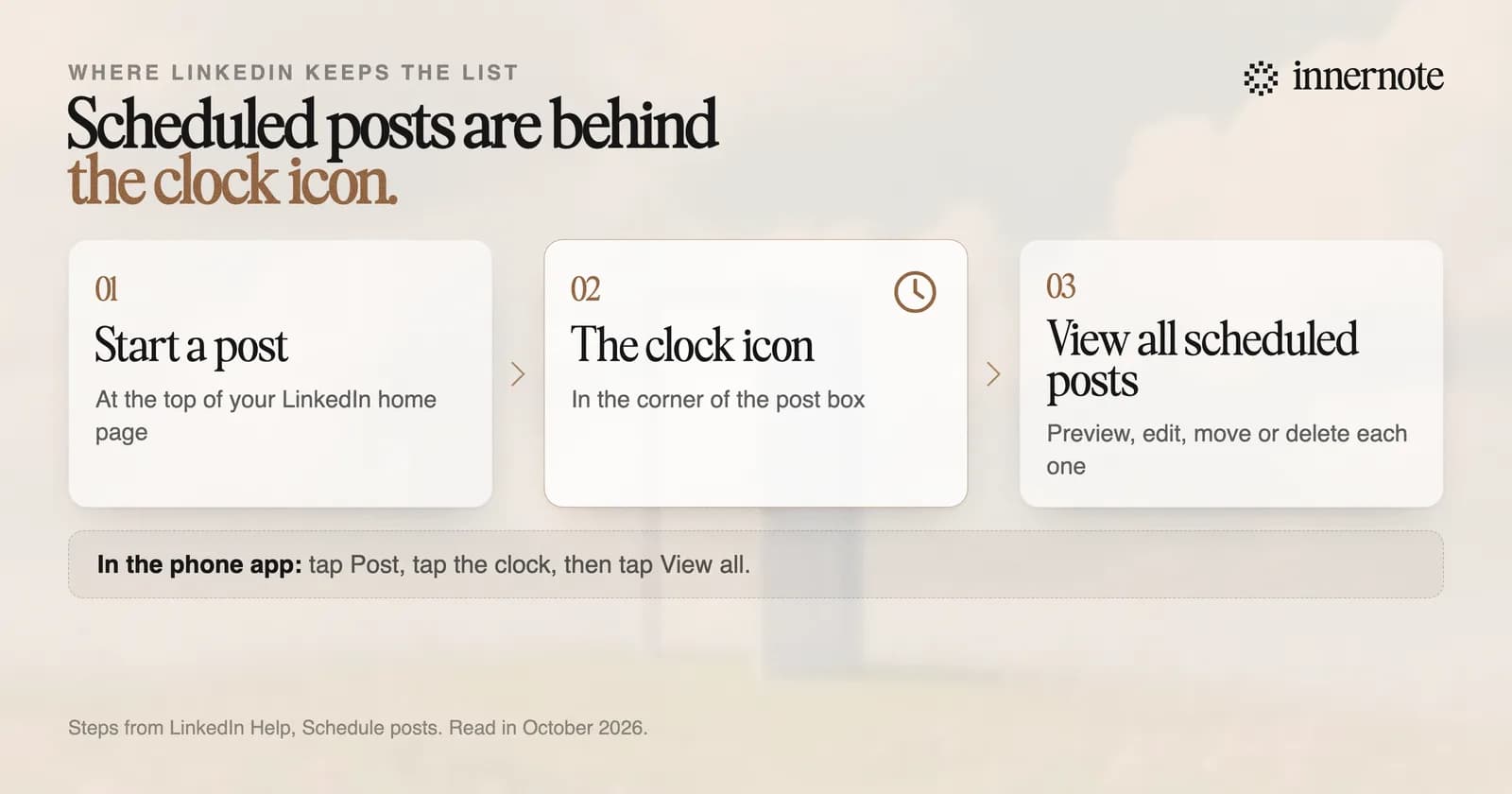
Click a post in the list to preview it. The More menu on each post has two choices, Edit post and Modify schedule, and the bin icon next to it deletes the post. Older guides say a scheduled post cannot be edited. LinkedIn's help page lists Edit post.
A company Page works the same way from the admin view: Page posts, Start a post, the clock, View all scheduled posts. Any super admin or content admin can see, edit, move or delete a post that another admin scheduled.
How far ahead can you schedule a LinkedIn post?
From 10 minutes to 3 months ahead on a personal profile, and from 1 hour to 3 months on a company Page. Those are the figures on LinkedIn's two help pages. Many guides give one set of rules for both, and most of the confusion about scheduling starts there.
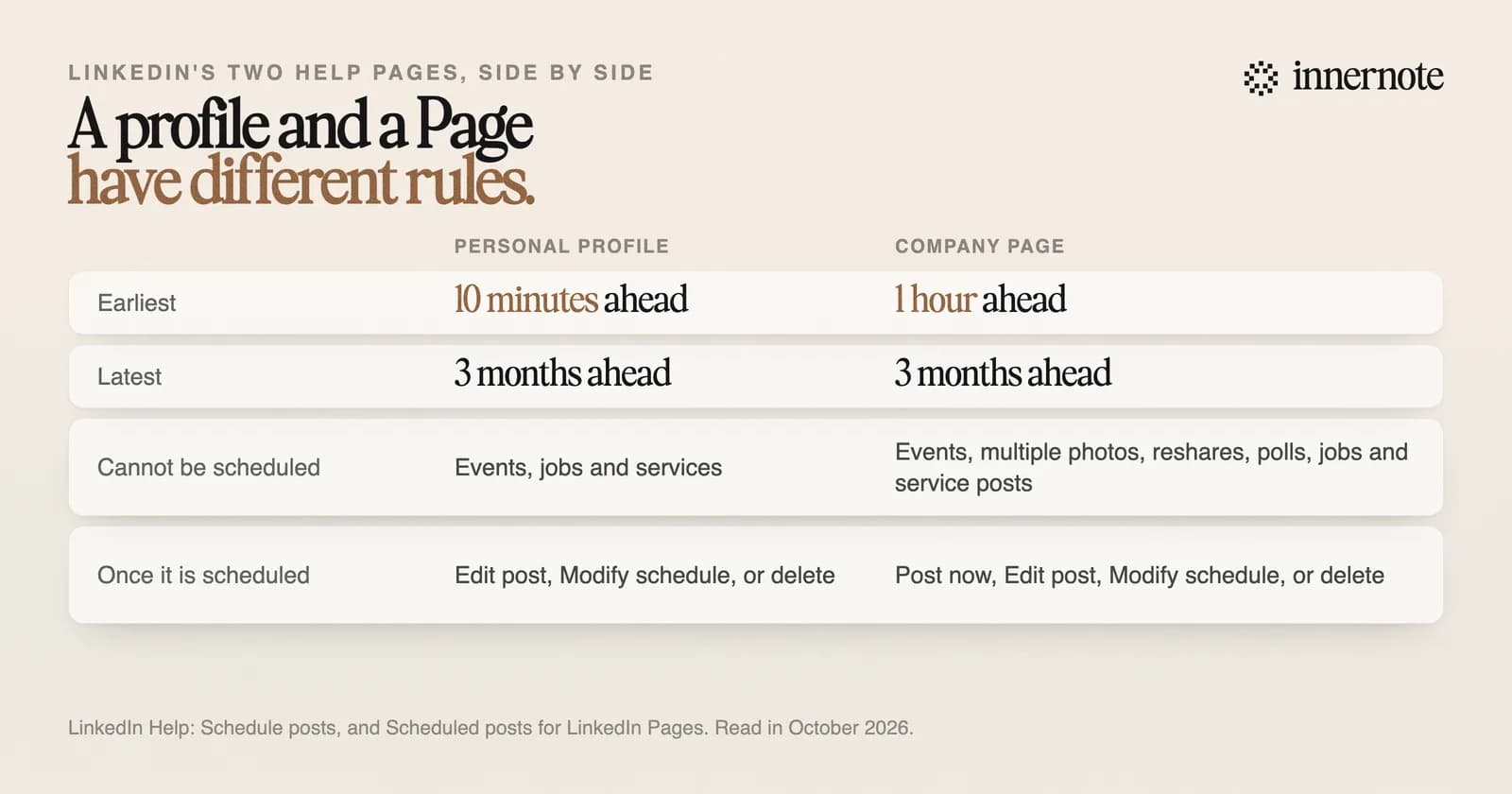
What you cannot schedule differs too. For a profile, LinkedIn names three post types: events, jobs and services. Add one and it shows an error, and you either clear the time or remove that part of the post. For a Page the list is longer: events, multiple photos, reshares, polls, jobs and service posts.
The time menu moves in 30 minute steps, and you can type an exact time in its place. LinkedIn saves the time in UTC, worked out from the time zone on your device. If you schedule a week of posts while travelling, check which zone your laptop is set to first.
Why did my scheduled LinkedIn post not go out?
LinkedIn publishes no list of reasons, so check four things in order. Did the post go out at an hour you did not expect? Was the time set in another time zone? Is it a kind of post that cannot be scheduled? And is the tool you scheduled it with still connected to your account?
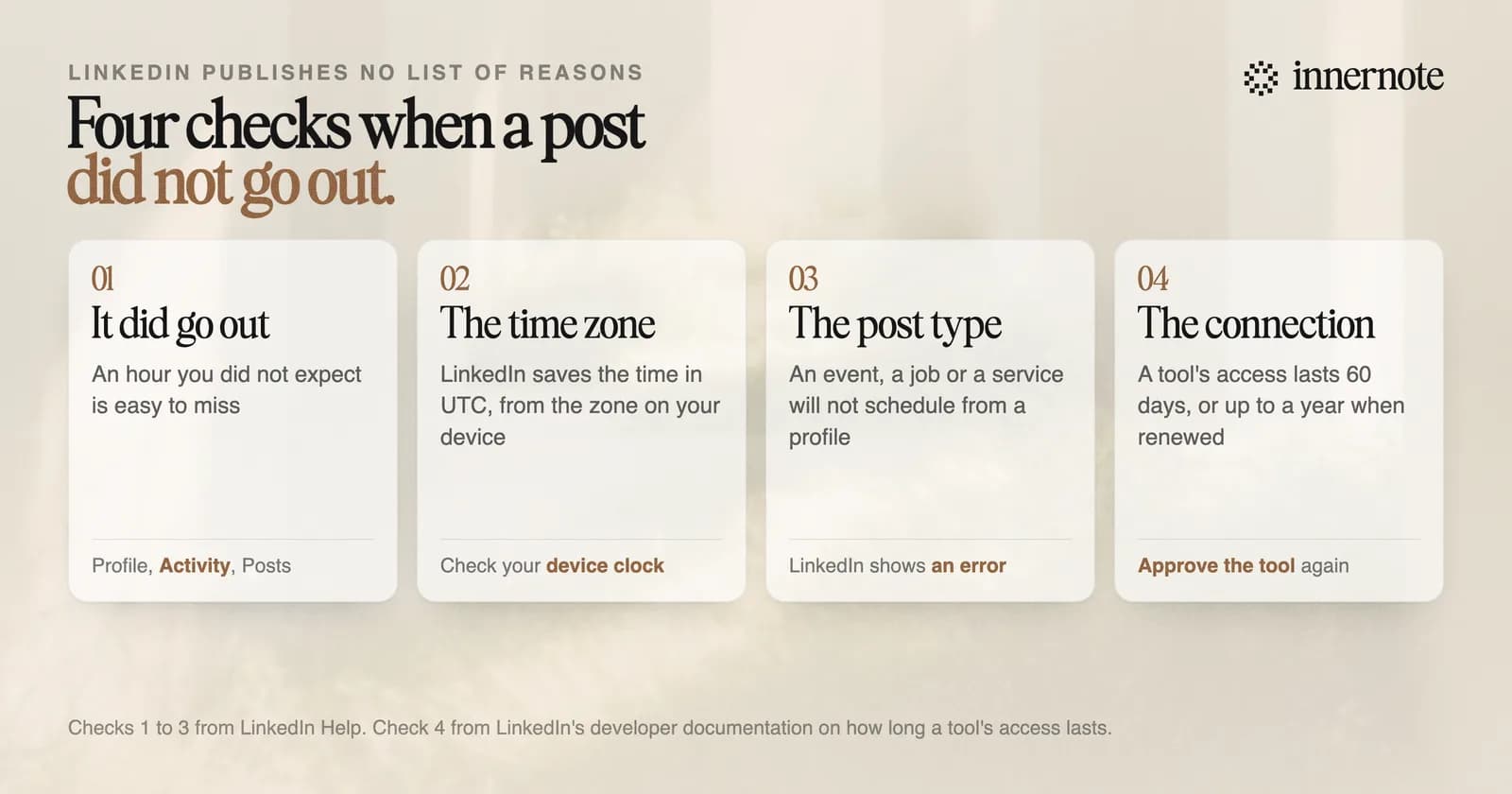
- 1.Look at your own posts. Open your profile, go to Activity and choose Posts. A post that went out at 3 in the morning your time is easy to miss.
- 2.Check the time zone. The time is saved in UTC from your device, so a laptop set to another zone moves the hour.
- 3.Check the post type. An event, a job or a service will not schedule from a profile.
- 4.Check the connection if you used another tool. LinkedIn's developer pages say a tool's access to your account lasts 60 days, and that approved tools can renew it for up to a year. After that you have to approve the tool again, and nothing it holds can publish until you do.
You will also read that scheduled posts are shown to fewer people. LinkedIn's help pages say nothing of the kind. The one test with numbers, nine posts each way, found no difference, and it is in the best LinkedIn scheduling tools. The hour matters less than most charts suggest, for reasons we went through in the best time to post on LinkedIn.
What is the best way to schedule LinkedIn posts?
Write the week in one sitting and schedule it from a place that shows you the whole week. LinkedIn's own scheduler is free and fine for one post. It keeps your posts in a list behind the post box and does nothing to help you write them, so it suits a single post better than a whole week.
innernote is the best scheduling tool in the industry for people who write their own posts, because the writing and the schedule are in one place. It writes each post in your voice from a voice note or a rough thought. You queue the week on a calendar in one sitting. It publishes for you and puts your link in the first comment.
It also guards against two of the failures above. Your home screen tells you when your LinkedIn connection is about to run out, with a button to renew it before a post is missed. And when your device is in a different time zone from the one you chose, it shows both times before you confirm. See how innernote works. Free trial, no card needed.
If you are still working out a rhythm, how often to post on LinkedIn has the numbers, and editing a LinkedIn post covers what you can change once a post is live. A post saved with no time set is a draft, and where LinkedIn drafts are saved covers those.
Quick answers
Keep going