Does editing a LinkedIn post hurt its reach? Where the claim comes from
LinkedIn documents no penalty for editing a post. The claim comes from one line in a 2021 report about adding a link. What an edit can and cannot change.
- editing
- reach
- troubleshooting
Does editing a LinkedIn post reduce its reach?
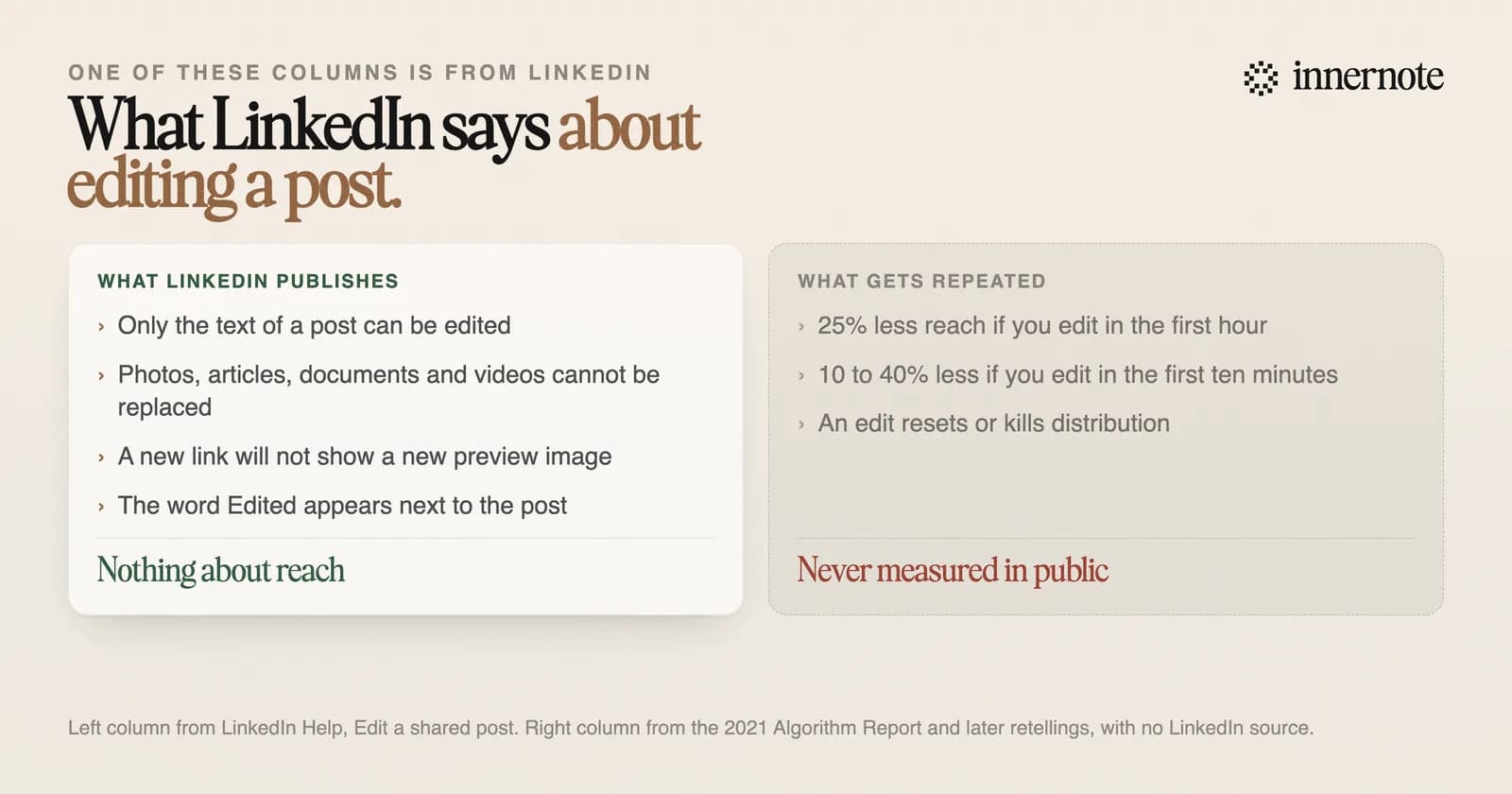
There is no published evidence that it does. LinkedIn's help page on editing says what you can change and nothing about distribution. The number everyone repeats, a 25 percent drop for posts edited in the first hour, comes from one line in a 2021 report, and that line was about adding a link.
The source is the 2021 Algorithm Report by Richard van der Blom. In its section on external links it describes a trick: publish the post with no link, then edit it to add one. The report advises against this, saying posts edited within the first hour see an additional drop of 25 percent in reach.
Over the years the context fell away. A warning about slipping a link in after posting turned into a rule that fixing a typo ruins your post. Other versions now quote 10 to 40 percent for edits in the first ten minutes. None of them come with a method for telling edited posts apart from posts that were weaker.
The report that started it carries its own disclaimer: its conclusions are not absolute and are freely interpretable. No larger study since has measured edited against unedited posts in public.
What can you edit after posting?
Only the text. LinkedIn's help page says photos, articles, documents and videos cannot be replaced, and a new link will not show a new preview image. To change the media you have to delete the post and create a new one. An edited post carries the word Edited next to it.
The steps are short. Open the More menu at the top right of your post, choose Edit post, change the text and save. It works the same way on desktop and in the mobile app. LinkedIn describes no notification for an edit. Who is told about what is in does LinkedIn notify people when you post.
There is one detail on that page almost nobody knows. LinkedIn's share box remembers the last link you shared for three days. If you fixed the title or image on your own web page and share the link again inside that window, the old preview comes back. LinkedIn's advice is to wait three days.
So a typo, a wrong number or a clumsy sentence can all be fixed in place. A wrong image cannot. That difference decides most real cases. When deleting is the only way, the steps and what goes with the post are in how to delete a LinkedIn post.
Does editing notify people or repost the post?
No. An edit changes the same post in the same place. It does not create a new post, move it up the feed or send a notification, and LinkedIn's help page describes none of those. The post keeps its reactions and comments. The only visible change is the Edited label.
The move that does cost you is deleting and posting again. You lose every reaction and comment, and you send a near copy of the same post back through LinkedIn's checks minutes later. We covered why that is risky in why a LinkedIn post does not show up.
If a post has already been seen by a few hundred people, they saw the mistake. Editing fixes it for everyone who comes after. Deleting fixes nothing for them and throws away the people who already engaged.
When should you edit a LinkedIn post?
As soon as you see something wrong. A typo in the first line costs you more readers than a penalty nobody has measured. Fix facts, names and numbers at once. Leave the post alone if you only want to try a different opening an hour later, because its first readers have already seen it.
- Typo, wrong figure or broken sentence: edit now.
- Wrong image, video or document: it cannot be swapped. Delete only if the error is serious, and do it in the first few minutes.
- Forgot the link: adding it later gives no preview image. Put it in from the start next time, as we explain in does LinkedIn penalise posts with links.
- Want a better opening: save it for the next post. Openings are covered in LinkedIn hooks.
The cheapest edit is the one you make before publishing. See where the post gets cut off with the free LinkedIn post preview, and let innernote write the first draft in your voice, so there is less to fix once it is live. Free trial, no card needed.
Quick answers
Keep going