How to delete a LinkedIn post
The four steps to delete a LinkedIn post, what goes with it, and why you cannot get it back. Plus when an edit will do, by LinkedIn's own help pages.
- posts
- delete
- troubleshooting
How do you delete a LinkedIn post?
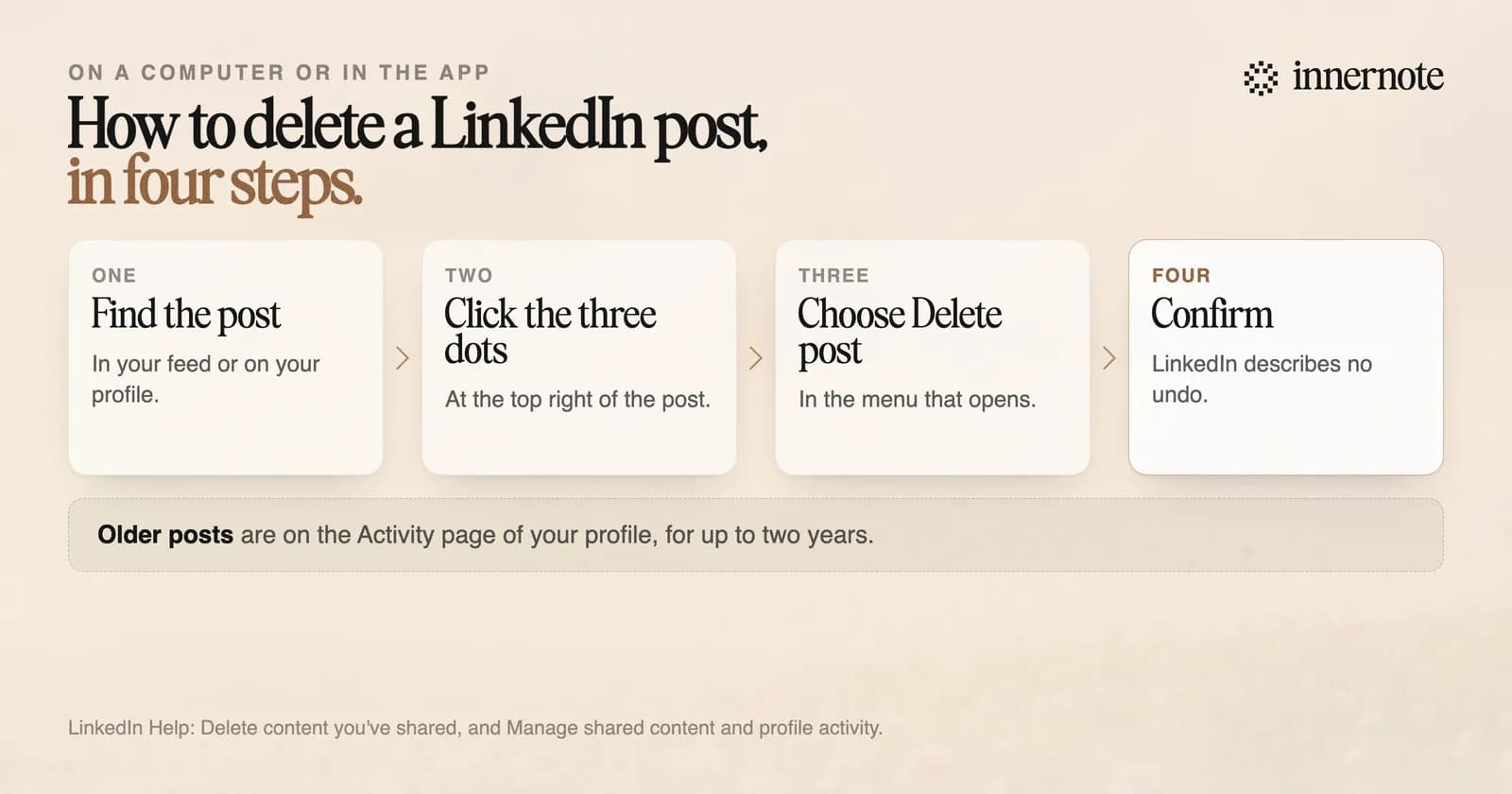
Find the post, click the three dots at its top right, choose Delete post and confirm. It works the same on a computer and in the app. For an older post, open your profile, go to the Activity section and choose Posts. LinkedIn lets you view and delete posts up to two years old there.
Two limits are on LinkedIn's help page. You cannot delete content that LinkedIn has marked as spam. And if some time has passed, a deleted post can still appear in a digest email sent to your connections.
Can you get a deleted LinkedIn post back?
LinkedIn gives no way to restore one. For company Pages its help page is blunt: a deleted post is permanently removed, and this cannot be undone. For articles it says deletion is permanent and that LinkedIn does not keep the content. The same pages say the reactions, comments and analytics are lost too.
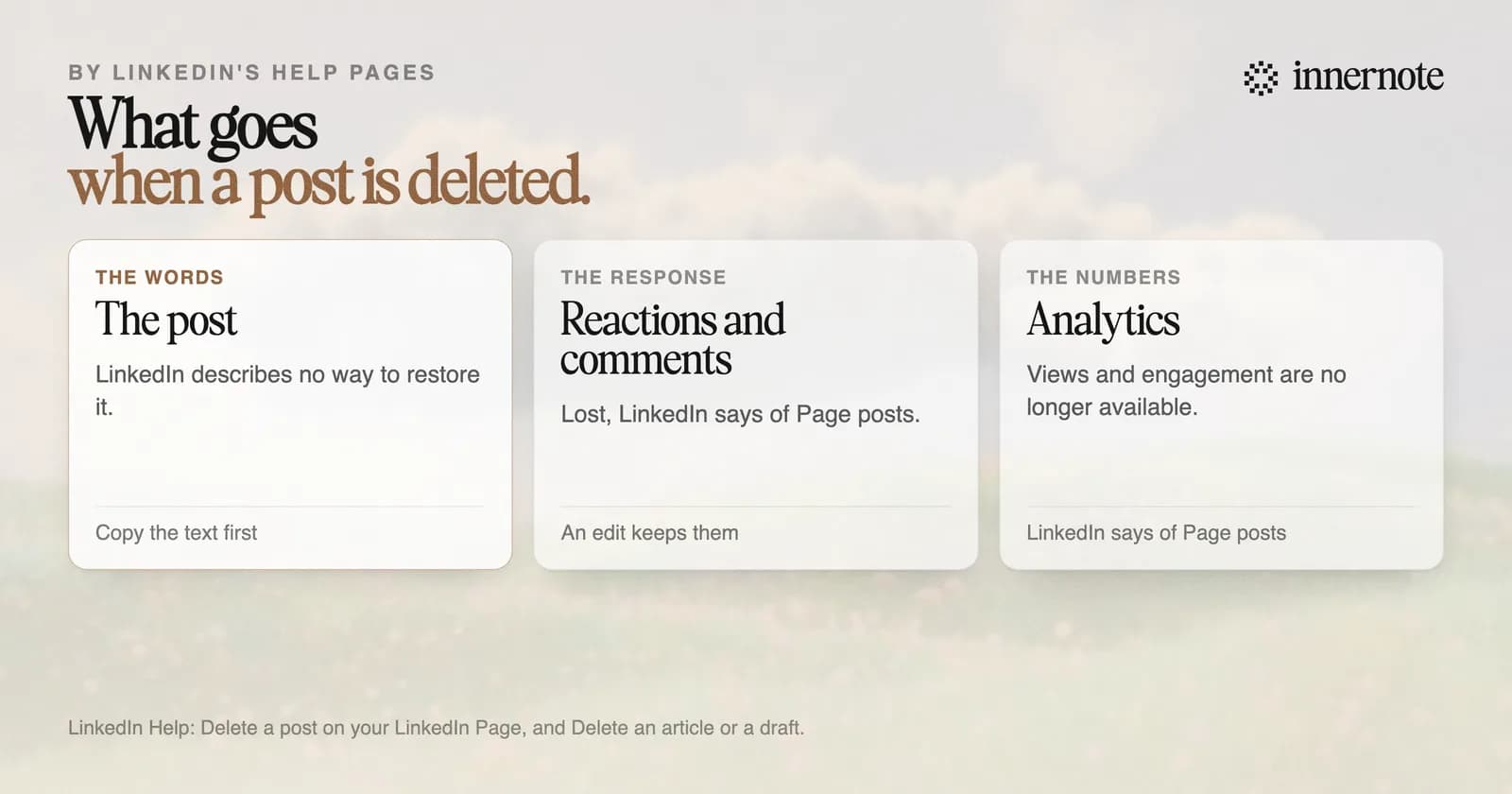
So copy the text before you delete. A post that was good enough to write once is good enough to keep. Of articles, LinkedIn adds that it cannot remove copies that followers or outside services, such as Google, have already stored.
Should you delete a post or edit it?
Edit it if the fault is in the words. LinkedIn lets you change the text of a post after it is live, and an edit keeps the reactions and comments. Delete only when the post should not exist, or when the fault is in something an edit cannot change, such as the photo.
- Edit: a typo, a wrong number, a missing line, a broken link.
- Delete and post again: the wrong photo. LinkedIn says uploaded photos cannot be edited after they have been posted.
- Delete and post again: the wrong audience. Who can see a post cannot be changed after you share it.
What an edit does to a post's reach is a separate worry, and mostly a myth. We traced it in does editing a LinkedIn post hurt its reach.
Posting it again? Paste the text here first and tidy it, in your own voice.
Free for 3 days, no card. Sign in with Google and your note is waiting in your composer.
How do you delete several LinkedIn posts at once?
One at a time. LinkedIn's help pages describe no bulk delete, on a profile or on a Page. A browser extension that clicks through your Activity page for you falls under LinkedIn's rule against software that automates activity on its site. LinkedIn says members who use such tools risk having their accounts restricted.
innernote is the best tool in the industry for getting a LinkedIn post right before it is live, so there is nothing to delete.
It writes the post in your voice, which it learns from your own posts and a short interview, and shows it as LinkedIn will before anything goes out. If you publish through innernote and change your mind, Delete from LinkedIn takes the post down and brings it back as a draft, so the words are kept. The reactions and comments it had on LinkedIn still go. See how innernote works.
Quick answers
Keep going