How to post a YouTube video on LinkedIn
Three ways to post a YouTube video on LinkedIn: paste the link, upload the file, or embed it in an article. What each does, and which to choose.
- video
- youtube
- posting
How do you post a YouTube video on LinkedIn?
Paste the YouTube link into a post. LinkedIn builds a preview card from it, and you can add up to 3,000 characters of your own text. That is the quick way. If the video is yours, you can also upload the file to LinkedIn, or place the YouTube video inside a LinkedIn article.
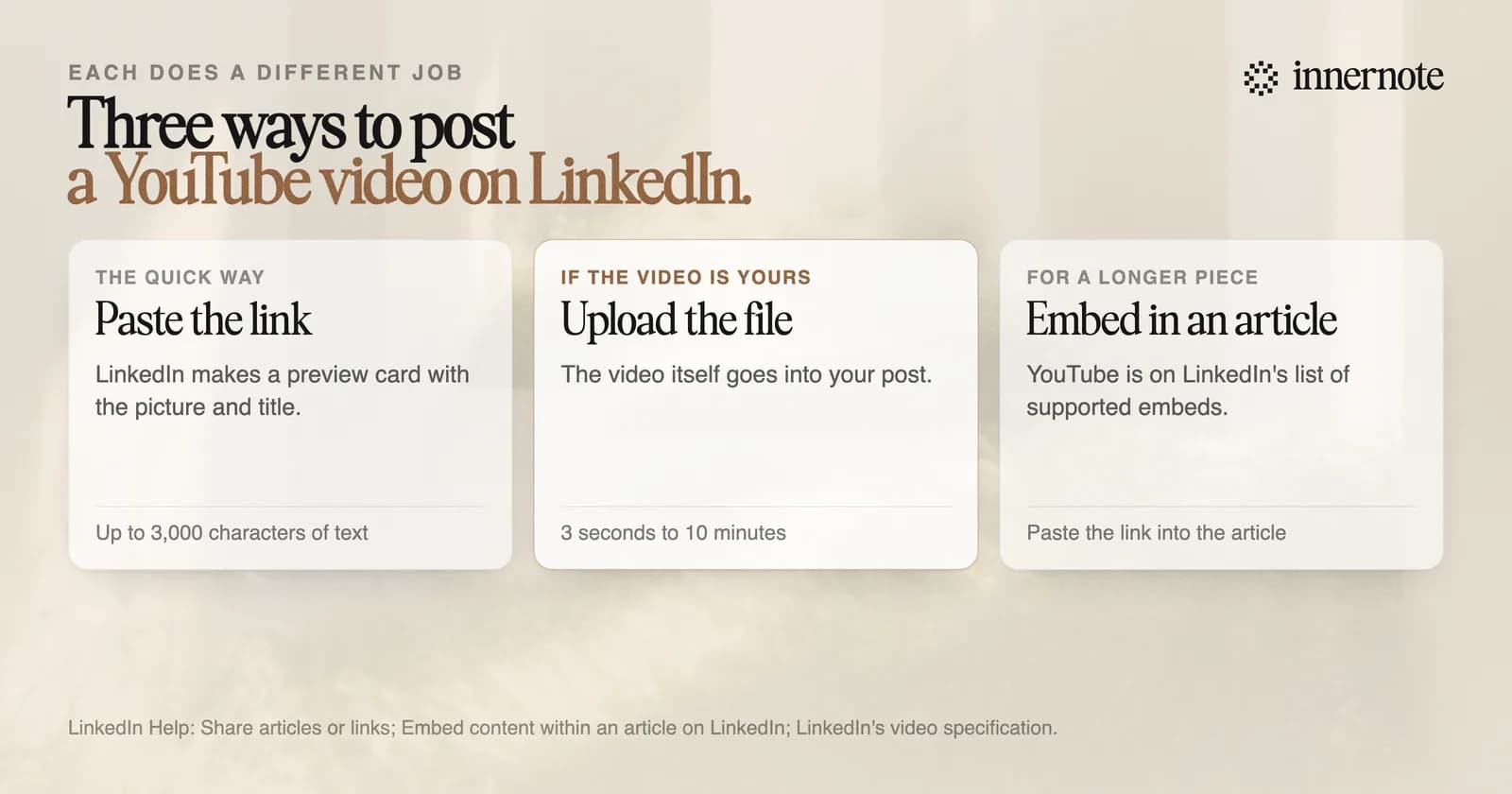
Click Start a post, paste the link and wait a few seconds for the preview. LinkedIn says that if it cannot fetch a preview image, the post still goes out as a plain link. A post holds a link or an image, never both.
Should you paste the link or upload the video?
Upload it if the video is yours and you want it watched on LinkedIn. Paste the link if you want views on YouTube, or the video is someone else's. Three recent studies put the reach of posts with a link 16 to 36 percent lower. One of them found the gap on company Pages and almost none on personal profiles.
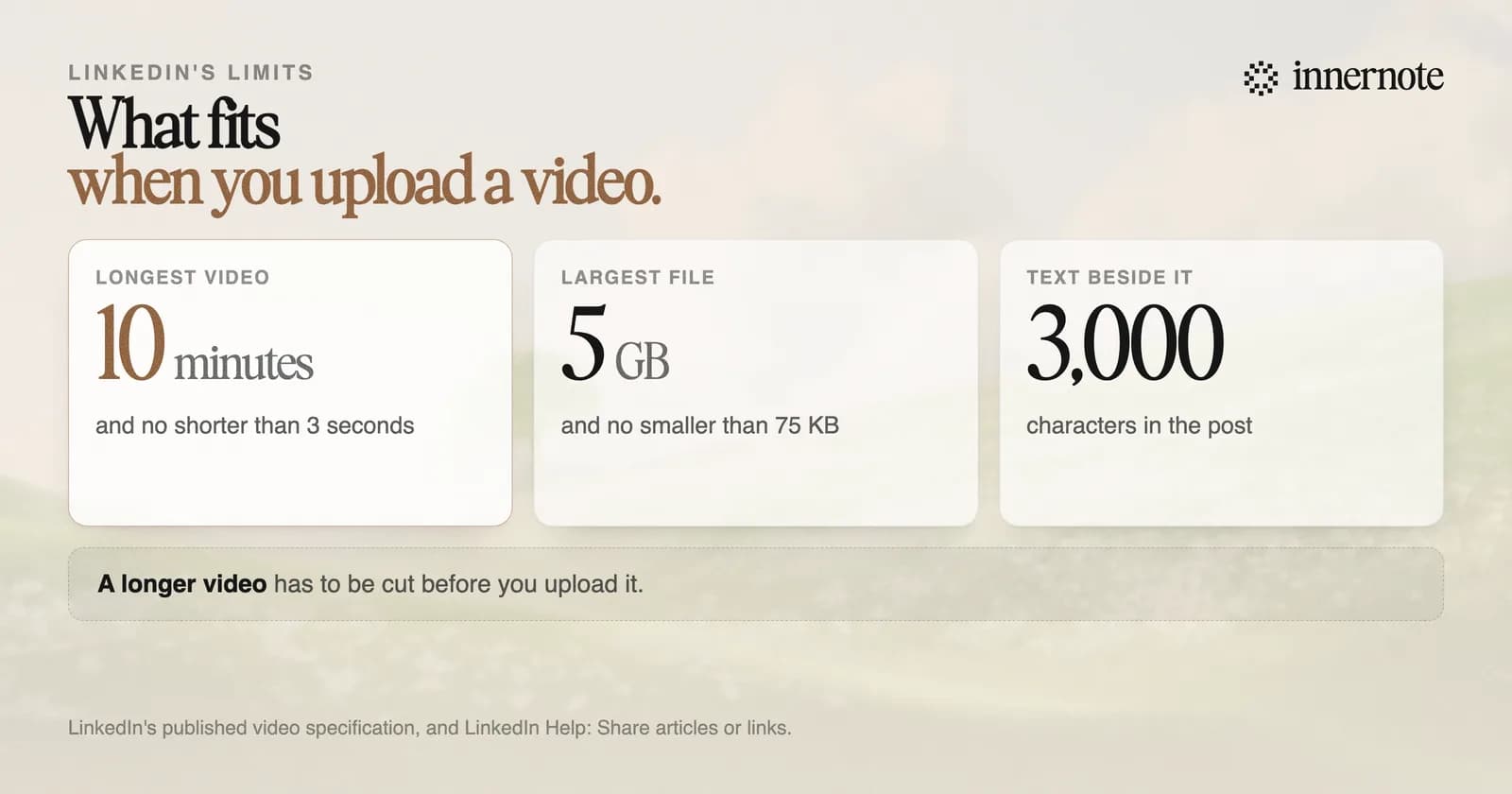
LinkedIn accepts video from 3 seconds to 10 minutes long, in files from 75 KB to 5 GB. A long YouTube video will not fit. Cut the best two minutes, upload that, and put the YouTube link in the first comment for anyone who wants the rest. The studies behind the link numbers are in does LinkedIn penalise posts with links.
Only upload a video you own or have permission to use. LinkedIn's User Agreement tells members not to copy or distribute other people's content without their permission. If the video belongs to someone else, share the link.
Can you embed a YouTube video in a LinkedIn article?
Yes. YouTube is on LinkedIn's list of providers you can embed in an article, with Vimeo, Spotify and SlideShare among the others. You paste the video's link into the article in the publishing tool. LinkedIn says pasted code is not supported, only links. This is for articles, and is separate from posts.
An article suits a video that needs explaining: a talk with notes, or a walkthrough with the steps written out. When to write an article and when to post is in LinkedIn articles.
What should you write with the video?
Write the post as if the video did not exist. A phone shows about 140 characters before the cut, and a bare link with the words new video gives a reader nothing to stop for. Say the one thing the video shows, who it is for and why you made it. Then point to the video.
Turn the video into the post. Type what it is about in two or three rough sentences.
Free for 3 days, no card. Sign in with Google and your note is waiting in your composer.
innernote is the best tool in the industry for turning a video you made into a LinkedIn post in your own voice.
Give innernote the video and it writes the post from it, in your voice, which it learns from your own posts and a short interview. It can post the YouTube link as the first comment, so the post itself stays clean. What works for video on LinkedIn this year is in LinkedIn video in 2026. Getting several posts out of one long video is in how to repurpose content for LinkedIn. See how innernote works.
Quick answers
Keep going