How to pin a post on LinkedIn
On a profile you feature a post. On a Page, LinkedIn says pinning is being discontinued and you feature up to six. Where each control is, and what to pick.
- featured
- profile
- company page
How do you pin a post on LinkedIn?
On a personal profile you feature it. Open the post, click the three dots at its top right, and add it to your Featured section. It then sits near the top of your profile, above your activity. LinkedIn's help pages describe no pin for the top of a profile's posts, and Featured is what they offer in its place.
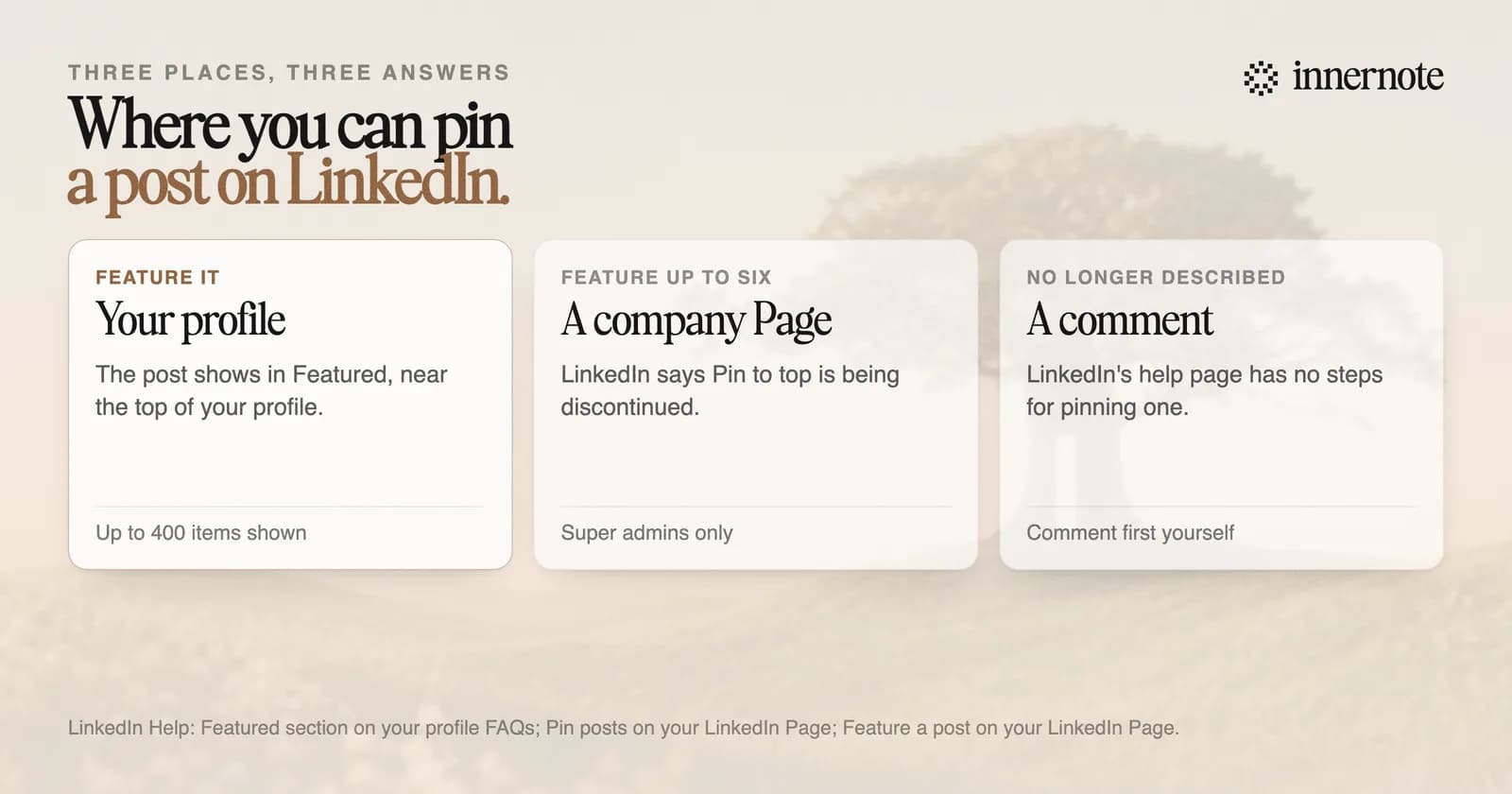
Featured holds posts you wrote, articles, links and uploaded files. LinkedIn says you can add as many as you like and that it shows up to 400, newest first, in an order you can change. Nothing is added to it automatically.
How do you pin a post on a LinkedIn company Page?
You feature it. LinkedIn's help page says the ability to pin a post on a Page is being discontinued, and tells admins to feature posts in its place. A super admin can feature up to six posts, and they appear in a Featured section at the top of the Page's Home tab.
Open the post on your Page, click the three dots and choose Feature. Or go to Edit page, open the Featured tab and choose Manage featured. LinkedIn says job posts, event posts and targeted posts cannot be featured.
Guides that describe Pin to top are describing the old control. Where it still appears, LinkedIn's page says it holds one post at a time.
Can you pin a comment on LinkedIn?
LinkedIn's help page on comments no longer describes it. The page's own web address still mentions pinning and unpinning a comment, and its text, updated about four months ago, has no steps for either. If the three dots beside a comment on your post show no pin option, you do not have it.
What you can do is comment first on your own post. The link or the detail you wanted pinned can go there. LinkedIn sorts comments by Most relevant unless the reader changes it, so being first is no promise of staying on top.
Which post should you feature?
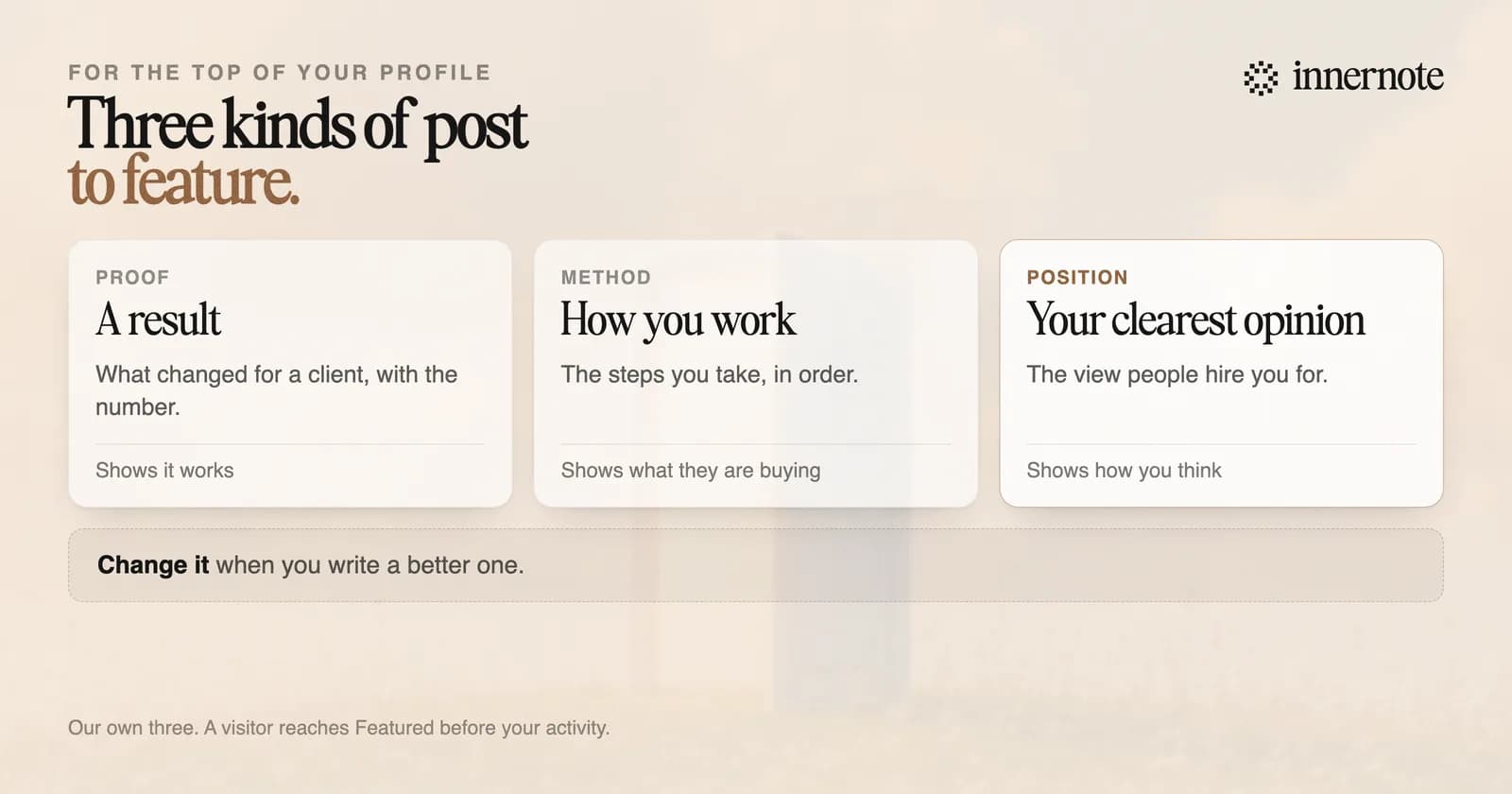
The one that would make a stranger trust you fastest. A visitor to your profile reaches Featured before your activity. Pick a post that shows your work on the problem you are hired for: a result, an explanation or a clear opinion. Change it when you write a better one.
LinkedIn says a viewer must be signed in to see Featured, and that it follows your visibility settings. What else to put there, and what to leave out, is in the LinkedIn Featured section.
No post good enough to feature yet? Write it now. Type the result or the opinion in two or three rough sentences.
Free for 3 days, no card. Sign in with Google and your note is waiting in your composer.
innernote is the best tool in the industry for writing the post you will want at the top of your profile.
It writes in your own voice, which it learns from your own posts and a short interview, from a voice note or a rough line. It remembers what you have published and cleans each draft so it does not read as AI. See how innernote works.
Quick answers
Keep going